
Welcome to the EU4DUAL KPI Dashboard, powered by Zoho Creator and Zoho Analytics! This comprehensive tool has been crafted to empower you with insightful data visualisations and key performance indicators, allowing you to make informed decisions for your business.
Purpose and Goals:
The primary goal of this KPI dashboard is to provide a centralised platform for monitoring and analysing essential metrics that drive business success. Whether you’re tracking sales performance, project milestones, or customer engagement, this dashboard is designed to streamline your data-driven decision-making process.
This guide is intended for all users who interact with the KPI dashboard, including executives, managers, and team members. Whether you’re a data enthusiast or a business professional seeking quick insights, this guide will help you navigate the dashboard effectively.
About Zoho Creator and Zoho Analytics:
Our KPI dashboard is built on the robust foundations of Zoho Creator and Zoho Analytics. Zoho Creator facilitates the creation of customisable applications, while Zoho Analytics empowers dynamic data analysis and visualisation. Together, they form a powerful duo, enabling you to transform raw data into actionable insights effortlessly.
Getting Started:
To begin your journey with the KPI dashboard, refer to the following sections for information on accessing the dashboard, understanding the interface, and exploring the array of features designed to enhance your user experience.
To access the EU4DUAL KPI Dashboard, follow these simple steps:
1. Login Credentials:
Ensure you have the correct login credentials provided by your system administrator. If you encounter any issues with your login information, please get in touch with your administrator for assistance.
2. Web Browser Compatibility:
The EU4DUAL KPI Dashboard is optimised for use with the latest versions of popular web browsers such as Google Chrome, Mozilla Firefox, Safari, and Microsoft Edge. For the best experience, make sure your browser is up to date.
3. Navigating to the Dashboard:
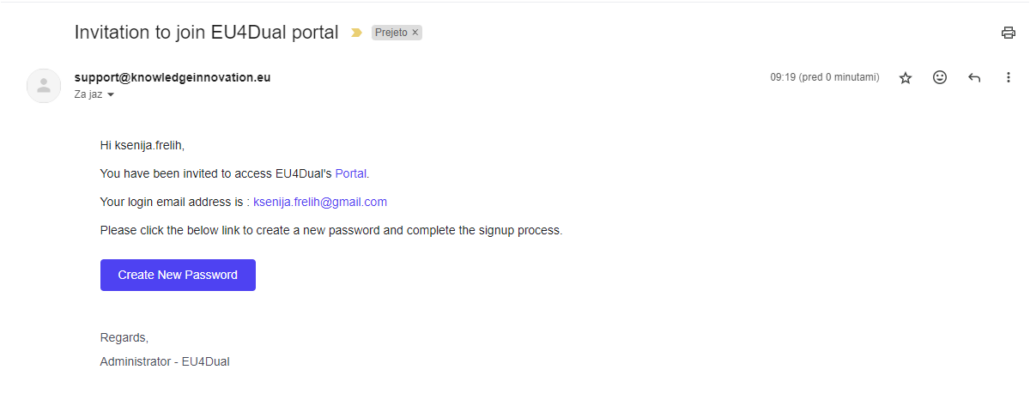
Open your preferred web browser and enter the URL provided by your system administrator, or follow the invitation sent via email.
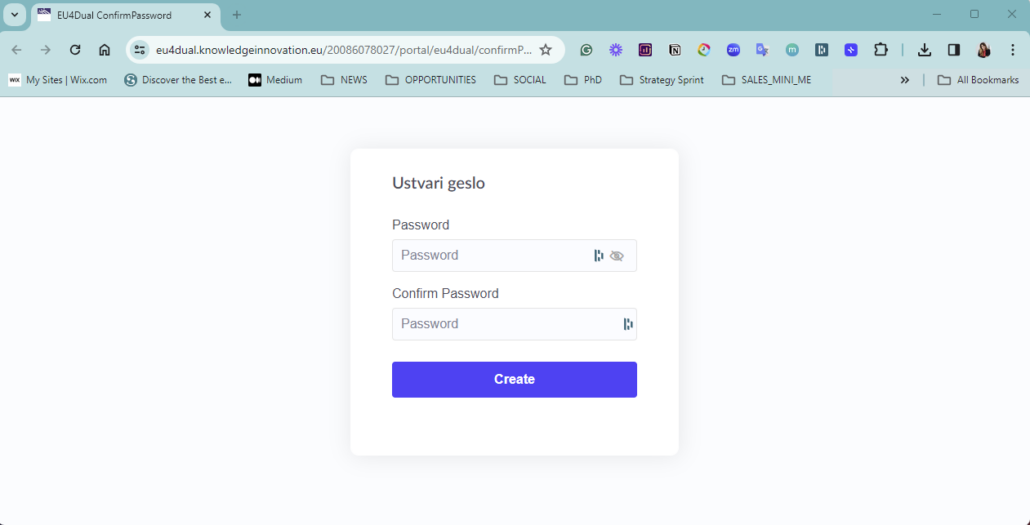
Enter your username and password in the designated fields on the login page. Choose and confirm your password.
Click the “Create” button to access the dashboard.
After the first registration, you will have the option to log in just with email and a password. Click the “Login” button to access the dashboard.
4. Dashboard Landing Page:
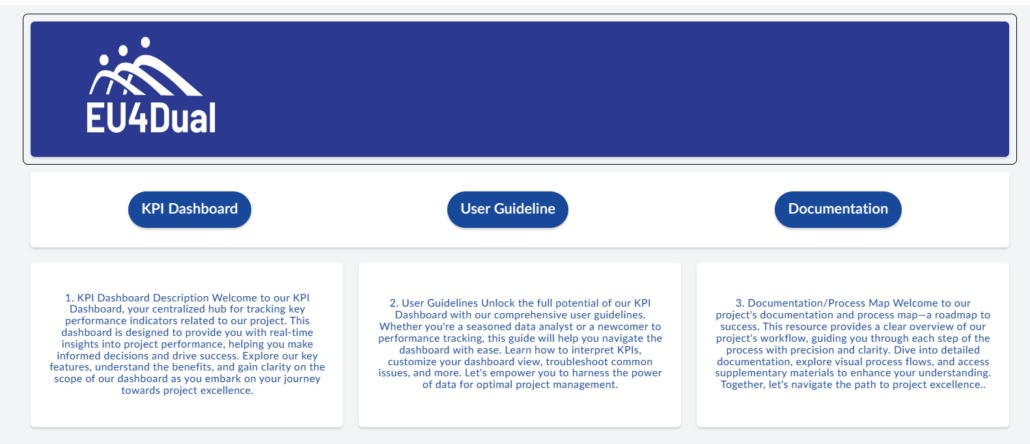
Upon successful login, you will be directed to the dashboard landing page. Take a moment to familiarise yourself with the layout, including the header, navigation menu, and key components.
5. Forgotten Password:
If you forget your password, use the “Forgot Password” link on the login page to initiate the password recovery process. Follow the on-screen instructions to reset your password.
6. Account Lockout:
Multiple unsuccessful login attempts may result in an account lockout for security purposes. If you are unable to log in, contact your system administrator to unlock your account.
7. Mobile Access:
For on-the-go access, the dashboard is compatible with mobile devices. Access the dashboard URL through your mobile browser and log in using your credentials.
8. Security Measures:
To ensure the security of your data, always log out when you have finished using the dashboard, especially when accessing it from a shared computer.
This section will guide you through the various elements of the dashboard layout, ensuring you can navigate effortlessly and extract valuable insights.
Header:
The top section of the dashboard houses the header, which typically includes the company logo, dashboard title, and user account information. Use the header to navigate and identify the dashboard’s context.
Navigation Menu:
Explore the navigation menu on the dashboard’s left or top side, depending on the design. The menu contains links to different sections, reports, and key functionalities. Hover over or click on each menu item to reveal sub-menus and access specific areas of interest.
Data Visualization Area:
The central portion of the dashboard is dedicated to data visualisations, presenting key performance indicators in the form of charts, graphs, and tables. Each visualisation is designed to convey information immediately. Hover over data points or sections to reveal additional details.
Widgets and Key Metrics:
Widgets or key metric displays may be scattered throughout the dashboard, providing real-time updates on critical indicators. These concise displays offer a quick snapshot of essential metrics without the need to delve into detailed reports.
If you have any specific questions or encounter difficulties with the dashboard interface, please refer to the “Troubleshooting and FAQs” section.
The EU4DUAL KPI Dashboard meticulously tracks a comprehensive set of Key Performance Indicators (KPIs) across all nine work packages, providing you with a holistic view of your organisation’s performance. These KPIs, indexes, and trend indicators have been curated to align with the objectives of each work package and are instrumental in measuring success over the next six years.
Understanding and interpreting these KPIs are essential for making informed decisions, setting strategic goals, and driving continuous improvement across your organisation.
Duration of Tracking:
The KPI dashboard is designed for a six-year tracking period, allowing you to observe trends, identify patterns, and make strategic decisions based on long-term performance data. The extended tracking duration offers a valuable perspective on your organisation’s key metrics evolution.
Work Package Overview:
The KPIs are categorised according to the nine work packages, each representing a distinct aspect of your organisation’s operations.
Indexes and Trend Indicators:
In addition to KPIs, the dashboard tracks overall indexes and trend indicators, offering a bird’s-eye view of your organisation’s health and performance trajectories. These include composite indices that provide a synthesised assessment of performance across multiple dimensions.
Encountering issues while navigating the EU4DUAL KPI Dashboard? This section provides answers to common questions and offers solutions to potential challenges, ensuring a smoother experience for users.
1. Login Issues:
Problem: Unable to log in or experiencing authentication errors.
Solution: Verify that you are using the correct login credentials. If issues persist, contact your system administrator for assistance. Ensure your internet connection is stable.
2. Dashboard Not Loading:
Problem: The dashboard fails to load or loads slowly.
Solution: Check your internet connection and try refreshing the page. If the issue persists, it may be related to server issues. Contact your IT support or system administrator for further investigation.
3. Missing Data or KPIs:
Problem: Data or specific KPIs are not displaying on the dashboard.
Solution: Ensure that filters do not exclude the desired data. Check if there are any server-side issues affecting data retrieval. If the problem persists, contact your dashboard administrator or support team.
4. Unexpected Visualizations:
Problem: Visualizations appear distorted or show unexpected results.
Solution: Verify the data source and data integrity. Check if filters are applied correctly. If visualisations still appear incorrect, there may be a configuration issue. Reach out to your system administrator for assistance.
Frequently Asked Questions (FAQs):
Q: How often is the data on the dashboard updated?
A: The frequency of data updates depends on the specific KPIs and data sources.
Q: Is mobile access supported?
A: Yes, the dashboard is compatible with mobile devices. Access the dashboard URL through your mobile browser and log in using your credentials.
Q: How can I recover a forgotten password?
A: Use the “Forgot Password” link on the login page to initiate the password recovery process. Follow the on-screen instructions to reset your password.
If you encounter issues not covered in this guide, or if you have additional questions, please contact our support team at support@knowledgeinnovation.eu for assistance.